Interface Walkthrough
Main Screens and Buttons
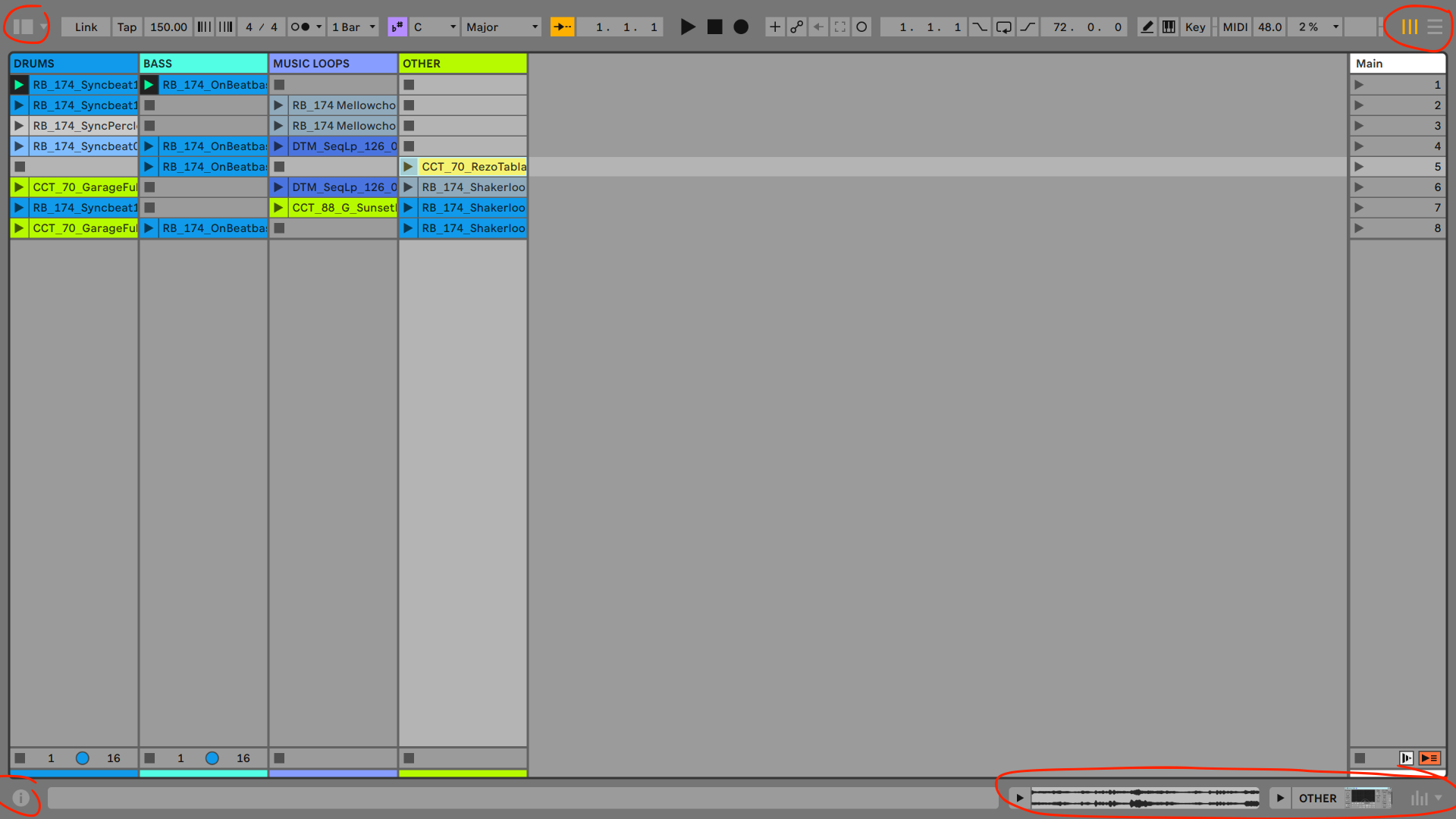
Let’s a have a quick tour of some of the elements of the user interface.
Note
DON’T even try to memorise everything. This is for an overview and that you get familiar with some terms.
Top Row:
- Tempo & Tap
- Time Signature
- Click
- Play / Stop / Record
- Computer Midi Keyboard
- Keyboard mapping

show and hide sections
-
Browser (Top left)
-
Session / Arrangement View (Top right)
-
Info / Help view (Bottom left)
-
Clip / Device View (Bottom right)
-
Mixer Elements(Bottom right)
-
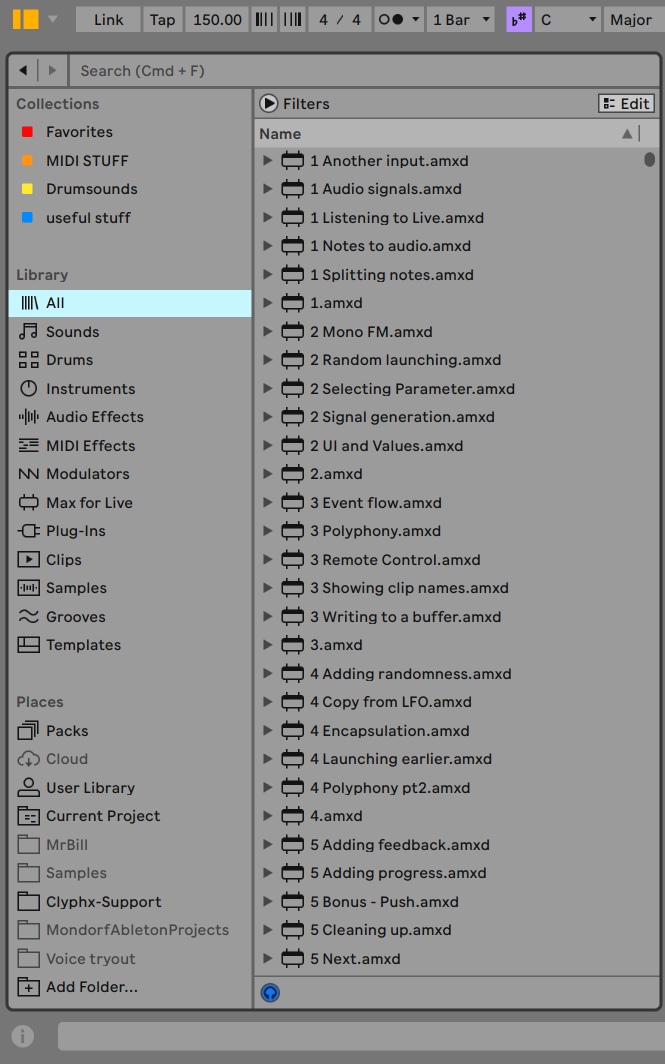
Browser
- Collections (Favourites)
- Library (Hide / Show elements)
- Places (Hide elements in preferences)
How does a mixer work ?
Let’s talk about signal flow and mixer buttons:
- Mute (on/off)
- Solo
- Pan
- Arm
Tip
Try to use shortcuts for hiding and showing sections as much as you can!! This will be totally crucial to speed up your workflow later!
Now, that being said, let’s have a look what you can do with audio clips. Please press the right button to continue to the next page.